
FTZ Entry Overview
The FTZ Entry screen is the primary processing screen used to create, maintain, and transmit Foreign Trade Zone admission transactions through ABI.
From this workflow the user can create FTZ admission records, enter transportation information, maintain Bill of Lading detail, container information, HTS detail, and transmit the admission electronically to Customs.
- Create new FTZ admissions
- Maintain transportation and admission information
- Enter Bills of Lading and Container detail
- Maintain HTS classification information
- Transmit admissions to Customs through ABI
- Review ABI responses and print supporting documentation
FTZ Entry controls the complete admission workflow beginning with transportation and admission data and continuing through Bill of Lading, container, HTS, ABI transmission, and Customs response processing.
Main FTZ Entry Screen
The FTZ Entry screen contains the primary admission information used for ABI transmission.
Main Sections
- File Number: Internal FasTrax FTZ shipment number.
- Client Account: Importer or customer related to the FTZ admission.
- Calendar Year: Admission calendar year used by ABI.
- Action Code: Controls the FTZ admission transaction type.
- Control Number: Customs control number assigned to the admission.
- Zone Location / Zone ID: FTZ facility location and zone identifier.
- FTZ Port Code: Customs port where admission is filed.
- Admission Type: Defines the FTZ admission type.
- Direct Delivery: Indicates whether direct delivery processing applies.
- Routing Code: ABI routing or transmission code.
- Zone Operator: FTZ operator responsible for the admission.
Toolbar / Modify Line Options
The toolbar at the bottom of the FTZ Entry screen provides quick access to related processing functions.
- (Q)uit: Exit the FTZ Entry screen without saving changes.
- (C)ontact: Opens the Contact Information screen.
- (N)otes: Opens internal notes or remarks related to the shipment.
- (PR)int: Print FTZ admission or related Customs documentation.
- (B)Ls: Opens Bill of Lading processing and maintenance.
- (I)SF: Opens Importer Security Filing related processing.
- (T)ransmit: Sends the FTZ admission through ABI transmission.
- (A)bi: Review ABI response or Customs acknowledgements.
- (P)ost: Save and post the FTZ admission transaction.
Contact Information
The Contact Information screen stores communication and replacement information related to the FTZ admission.
- Contact Name: Contact person for the FTZ admission.
- Contact Phone: Phone number for Customs or operational communication.
- Replacement Reason Codes: Customs replacement or correction reason information.
- Replacement Remarks: Additional comments or explanations related to replacement processing.
Bill of Lading Processing
FTZ admissions may contain one or more Bills of Lading. The Bill of Lading workflow allows the user to maintain Master Bills, House Bills, quantity information, and related transportation detail.
Bill of Lading List
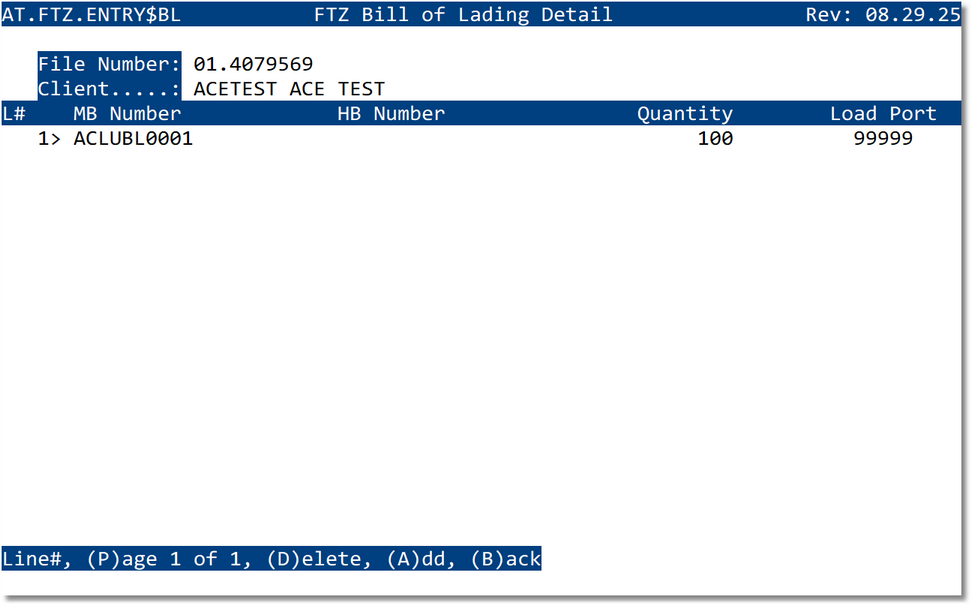
- Displays all Bills of Lading entered for the FTZ admission.
- Allows the user to Add or Delete Bills of Lading.
- Displays Master Bill, House Bill, quantity, and load port.
Bill of Lading Detail Entry
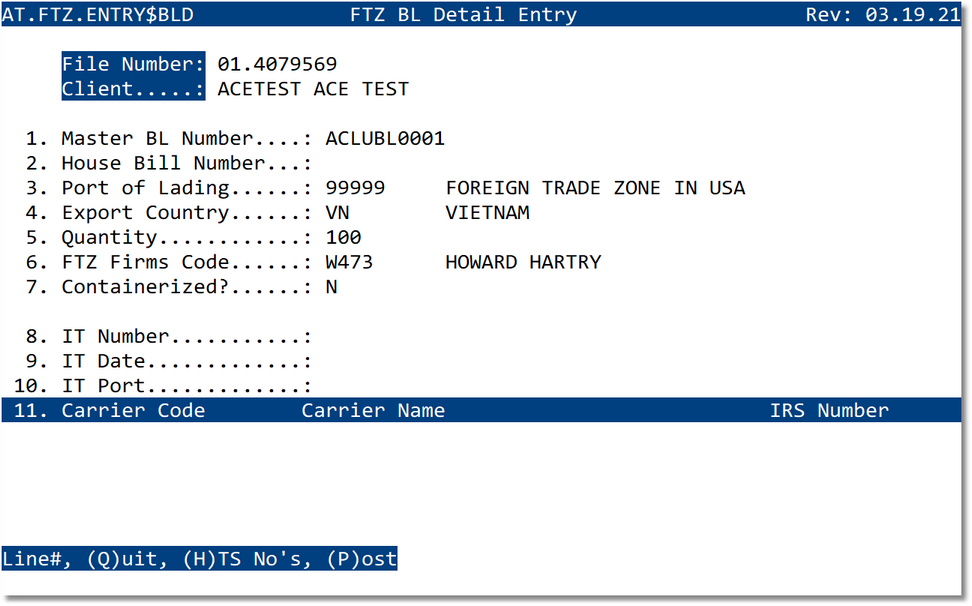
- Master BL Number and House Bill Number
- Port of Lading and Export Country
- Quantity and FTZ Firms Code
- Containerized? indicator
- IT Number, IT Date, and IT Port information
- Carrier Code, Carrier Name, and IRS Number
Container Processing
The system maintains HTS information by container. If the shipment is not containerized the user can proceed directly to HTS processing.
Container List
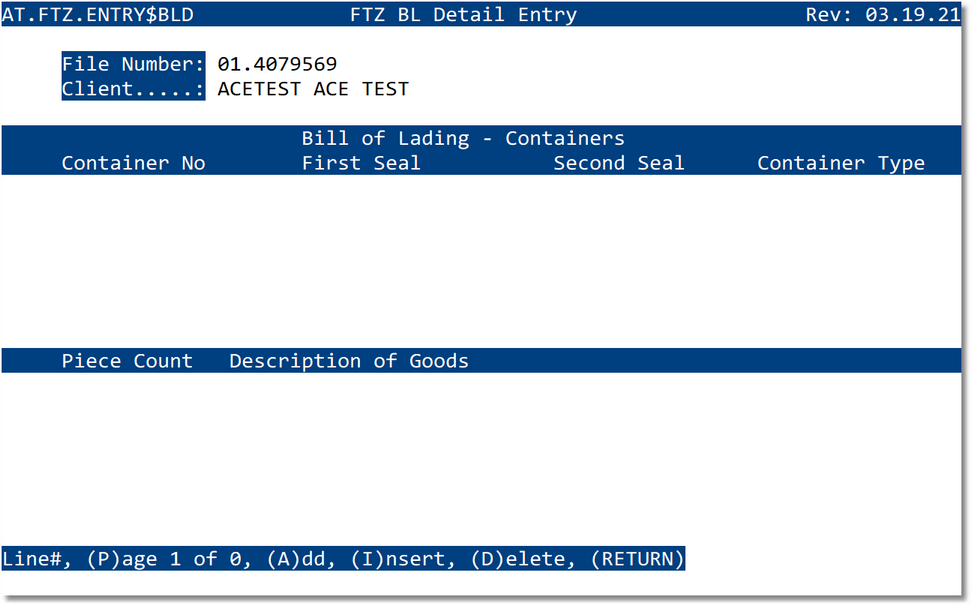
- Displays all containers entered for the Bill of Lading.
- Allows Add, Insert, or Delete container records.
- Stores containerized shipment information.
Container Detail Entry
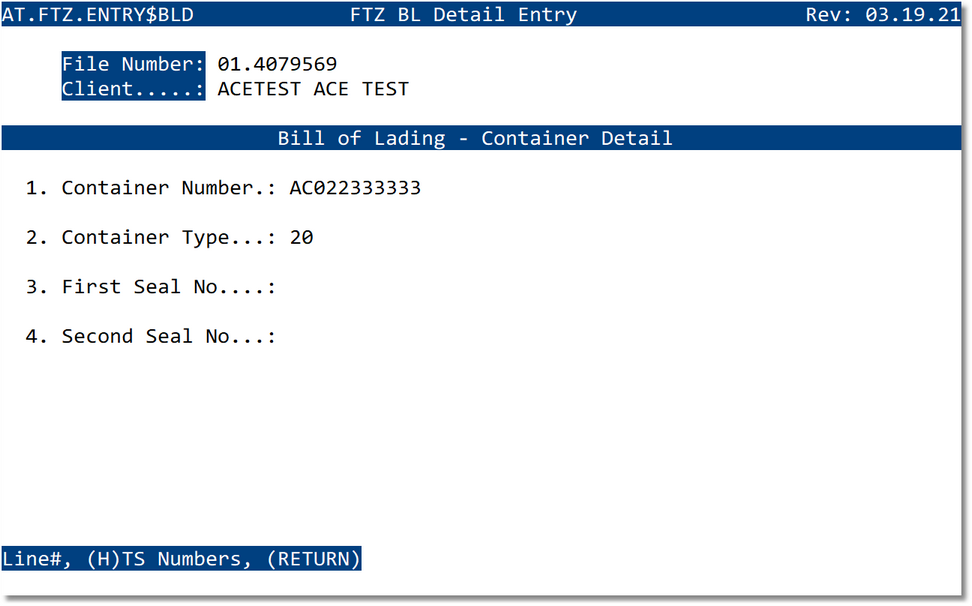
- Container Number
- Container Type
- First Seal Number
- Second Seal Number
HTS Processing
HTS information is maintained for each container or shipment. Users can maintain HTS classifications, value, quantity, weight, HMF information, and manufacturer detail.
HTS List by Container
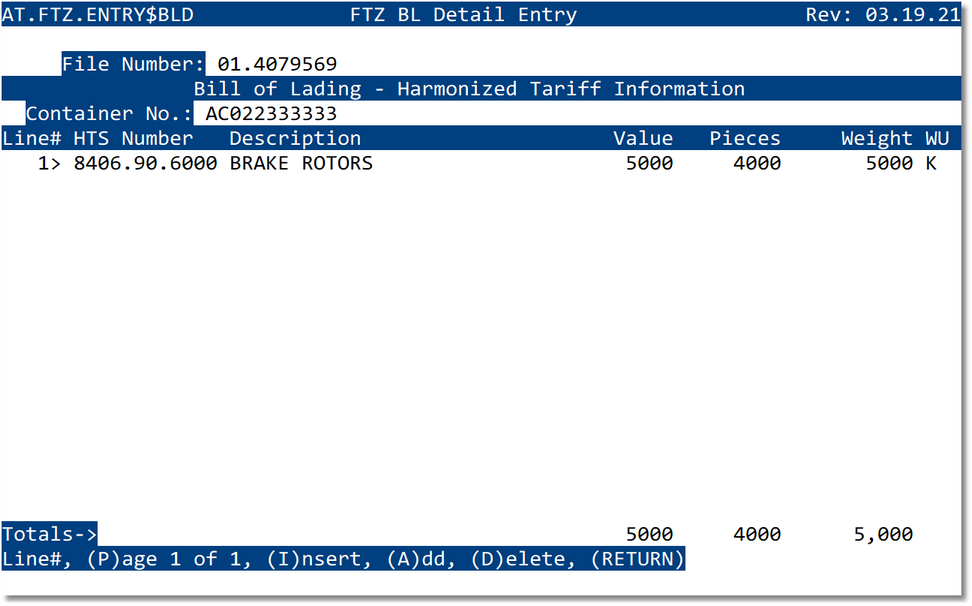
- Displays all HTS records related to the selected container.
- Allows Add, Insert, or Delete HTS lines.
- Displays HTS Number, value, pieces, and weight totals.
HTS Detail Entry
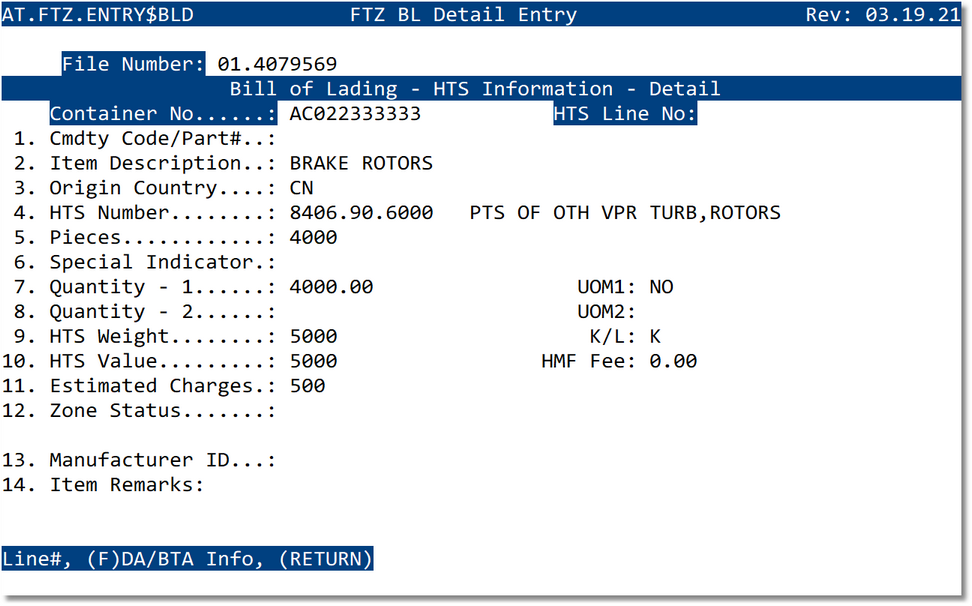
- Commodity Code / Part Number
- Item Description
- Origin Country
- HTS Number
- Pieces, Quantity, Weight, and Value
- Estimated Charges and HMF Fee
- Zone Status
- Manufacturer ID
- Item Remarks
Typical Workflow
- Create or open the FTZ admission record.
- Enter transportation and admission information.
- Enter Contact Information if required.
- Create one or more Bills of Lading.
- Enter container information when containerized.
- Maintain HTS information for each container or shipment.
- Review all totals, quantities, values, and admission data.
- Transmit the admission through ABI.
- Review ABI responses and print required documents.
Best Practices
- Verify transportation data: confirm voyage, SCAC, dates, and port information before transmission.
- Review HTS detail carefully: validate value, quantity, weight, and HTS numbers before ABI transmission.
- Maintain accurate container information: verify container and seal numbers against carrier documents.
- Monitor ABI responses: review acknowledgements and rejection responses immediately after transmission.
- Use remarks and notes: document unusual situations or corrections directly in the shipment record.
Frequently Asked Questions
Can one FTZ admission contain multiple Bills of Lading?
Yes. Multiple Bills of Lading may be entered for a single FTZ admission record.
Does the system maintain HTS information by container?
Yes. HTS information is associated with each container. If the shipment is not containerized the HTS detail may be entered directly.
Where are ABI responses reviewed?
ABI responses may be reviewed from the toolbar ABI option or from the FTZ menu ABI inquiry functions.
What happens when Post is selected?
Post saves and updates the FTZ admission record in the system.