
FTZ Update Overview
The FTZ Update screen is used to transmit update activity for a previously created Foreign Trade Zone admission through the ABI/FZ transmission process.
The screen allows the user to admit, concur, accept, perform a Permit to Transfer, cancel a Permit to Transfer, report physical arrival at the zone, or request a post-admission correction. The available update options are controlled by the selected Action Qualifier and Action Code.
- Report actions at the FTZ Admission Number level.
- Report actions at the Bill of Lading, In-Bond, Container, or House Bill level.
- Transmit delivery concurrence or delivery acceptance information.
- Request or cancel Permit to Transfer activity when applicable.
- Report the physical arrival of goods at the zone.
- Request post-admission corrections and provide required reason information.
The Action Qualifier tells CBP the level where the action is being taken. The Action Code tells CBP what specific update is being reported at that level.
Main FTZ Update Screen
The upper portion of the FTZ Update screen identifies the FTZ file and admission record. The lower section is used to enter the update action to be transmitted to CBP.
Main Sections
- File Number: Internal FasTrax FTZ file number.
- Date / By: Date and user associated with the FTZ record.
- Client Account: Customer or account related to the FTZ admission.
- Calendar Year: FTZ admission year.
- Control Number: Customs control number assigned to the admission.
- ABI Status: Current transmission status of the update.
- Zone Location / Zone ID: Zone facility and Customs zone identifier.
- Zone Port Code: Customs port code associated with the zone admission.
- Direct Delivery: Indicates whether direct delivery applies.
- Admission Type: FTZ admission type used for the transaction.
- Action Qualifier: Level at which the update action applies.
- Action Code: Specific update action being transmitted.
Action Qualifiers
The Action Qualifier identifies the level of the FTZ admission where the action is being taken. This selection controls which Action Codes are available to the user.
| Code | Description |
|---|---|
| 1 | Action taken at FTZ Admission Number level. |
| 2 | Bill of Lading number action taken. |
| 3 | In-Bond number action taken. |
| 4 | Container number action taken. |
| 5 | House Bill Number action taken. |
Action Codes
Qualifier 1 — FTZ Admission Number Level
| Code | Description |
|---|---|
| A | Concur with delivery of all goods associated with FTZ Admission Number. |
| G | Delivery of goods not acceptable; merchandise not authorized by operator for Zone admission. |
| H | Delivery of goods acceptable; merchandise authorized by operator for Zone admission. |
| J | Post Admission Correction Request. |
Qualifiers 2, 3, or 5 — BL, In-Bond, or House Bill Level
| Code | Description |
|---|---|
| B | Concur with delivery of goods only associated with Bill of Lading number. |
| F | Permit to Transfer Requested. |
| G | Delivery of goods not acceptable; merchandise not authorized by operator for Zone admission. |
| H | Delivery of goods acceptable; merchandise authorized by operator for Zone admission. |
| I | Physical arrival of goods at the zone reported by the operator. |
| K | Permit to Transfer Cancel. |
Qualifier 4 — Container Number Level
| Code | Description |
|---|---|
| D | Concur with delivery of goods associated with Container number. |
| G | Delivery of goods not acceptable; merchandise not authorized by operator for Zone admission. |
| H | Delivery of goods acceptable; merchandise authorized by operator for Zone admission. |
| I | Physical arrival of goods at the zone reported by the operator. |
| J | Post Admission Correction Request. |
| K | Permit to Transfer Cancel. |
Screen Changes by Action
The FTZ Update screen makes minor field changes based on the selected Action Qualifier and Action Code. Most action combinations use the standard screen layout shown on the initial screen.
Standard Update Layout
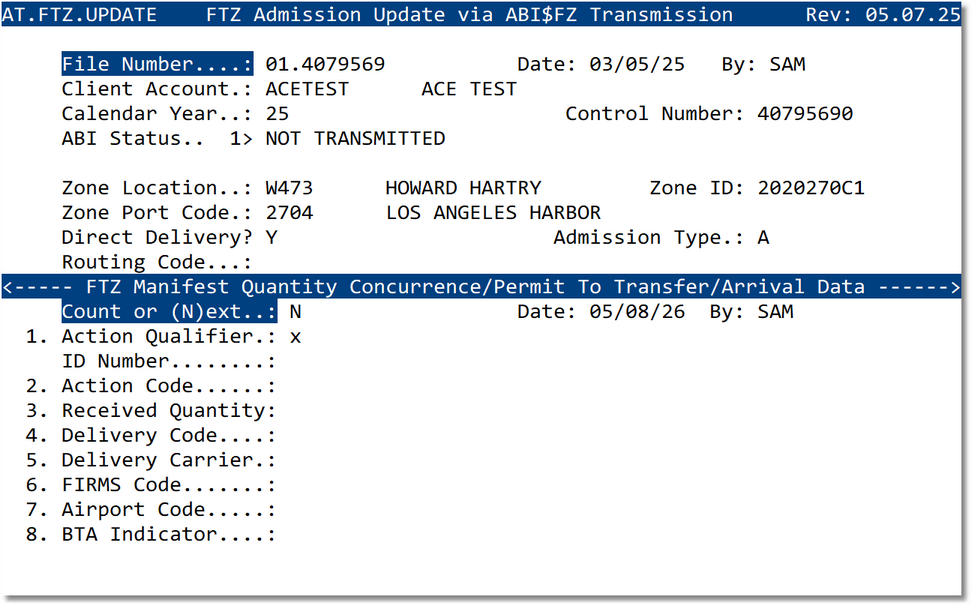
- Action Qualifier identifies the update level.
- ID Number identifies the BL, In-Bond, Container, or House Bill when applicable.
- Action Code identifies the CBP update action.
- FIRMS Code, Airport Code, and BTA Indicator may be entered when required.
Arrival Layout — Action Code I
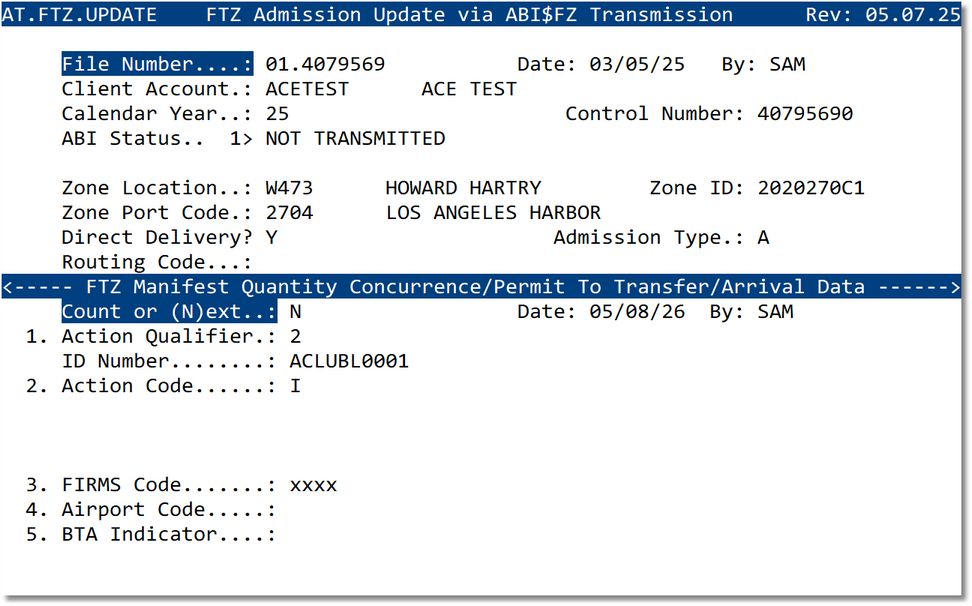
- Used when the operator reports that goods have physically arrived at the zone.
- Available for qualifier levels where arrival reporting is permitted.
- FIRMS Code, Airport Code, and BTA Indicator are displayed for arrival-related reporting.
Post Admission Correction — Action Code J
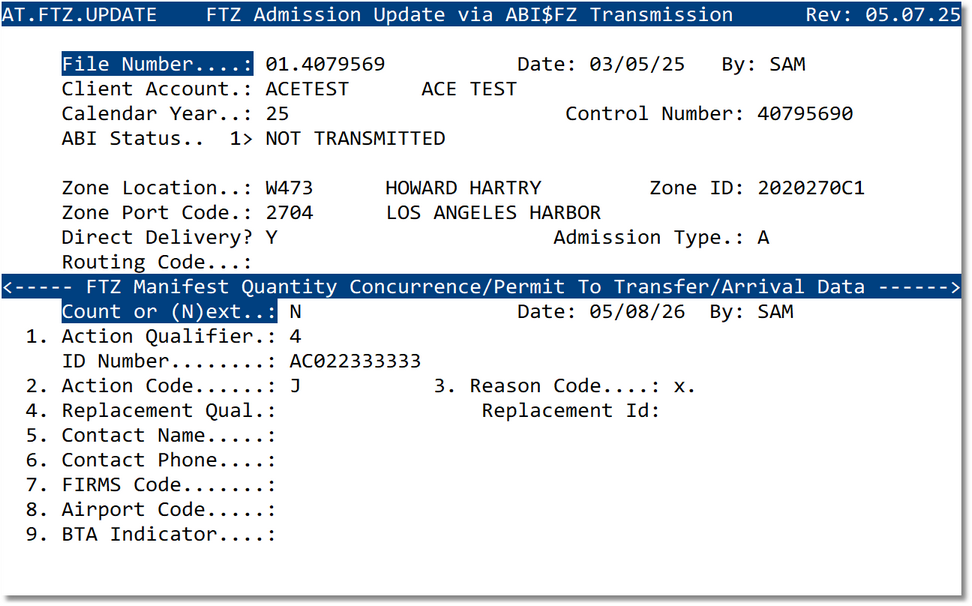
- Displays Reason Code.
- Displays Replacement Qualifier and Replacement ID when the selected reason requires replacement information.
- Includes Contact Name and Contact Phone for correction follow-up.
PTT Cancel — Action Code K
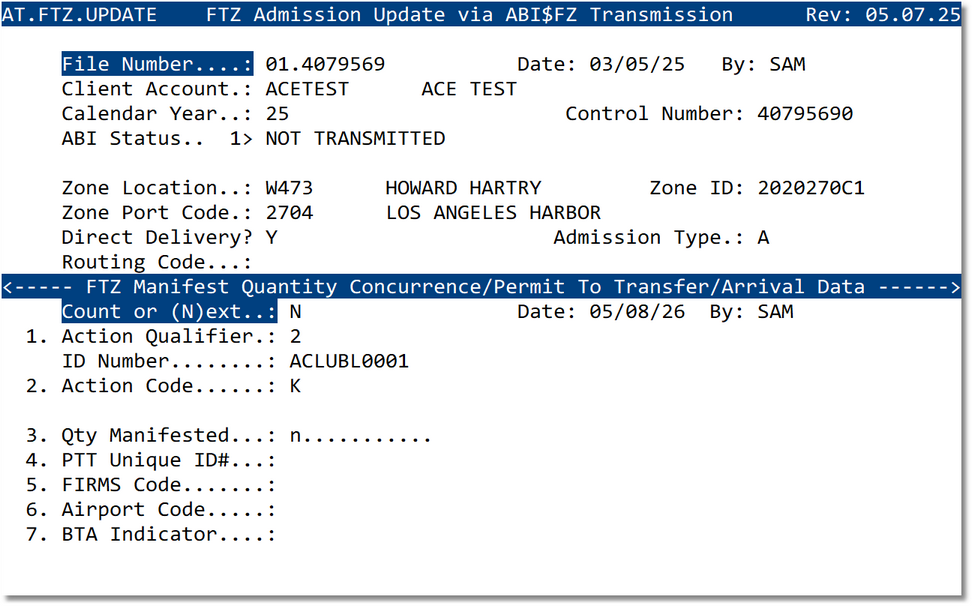
- Used to cancel Permit to Transfer activity.
- The applicable identifier is entered based on the selected qualifier.
- FIRMS Code, Airport Code, and BTA Indicator may be provided when required.
Post Admission Correction
When Action Code J is selected, the FTZ Update screen displays the Post Admission Correction fields. The user must select the appropriate Reason Code and, when required, provide replacement admission, entry, or in-bond information.
Reason Codes
| Code | Description |
|---|---|
| 01 | Clerical error. |
| 02 | Admission replaced by CBPF 7512. |
| 03 | Merchandise cleared under another admission. |
| 04 | Admission replaced by a formal entry. |
| 05 | Merchandise cleared under informal entry. |
| 06 | Merchandise seized. |
| 07 | Merchandise destroyed. |
| 08 | Non-arrival. |
| 09 | Shipment refused by importer or zone operator. |
| 10 | Shipment not authorized for import; refused by PGA. |
| 11 | System error. |
Permit to Transfer Guidance
Permit to Transfer activity may be requested or cancelled from the FTZ Update workflow when the movement from the port to the Foreign Trade Zone is permitted under the applicable FTZ process.
A Permit to Transfer can only be performed when the move from the port to the FTZ is within the same district. If the move is not within the same district, an In-Bond is required for that movement.
Typical Workflow
- Open the FTZ admission that requires an update.
- Review the file number, control number, zone location, port code, and admission information.
- Select the appropriate Action Qualifier to identify the level of the update.
- Enter the related ID Number when the qualifier requires a BL, In-Bond, Container, or House Bill identifier.
- Select the appropriate Action Code.
- Enter any additional fields displayed by the system for that action.
- For Post Admission Correction, select the Reason Code and replacement information when required.
- Review all update information before transmitting through ABI/FZ.
- Transmit the update and review the ABI response.
Best Practices
- Start with the correct qualifier: choose the Action Qualifier before selecting the Action Code because the available Action Codes depend on the qualifier.
- Verify the identifier: when working at BL, In-Bond, Container, or House Bill level, confirm the ID Number matches the supporting shipment record.
- Use Post Admission Correction carefully: Reason Codes and replacement information should be reviewed before transmission.
- Confirm PTT eligibility: verify that the port-to-zone move is within the same district before using Permit to Transfer processing.
- Review ABI status: confirm that the update has been accepted or take corrective action if a rejection is returned.
Frequently Asked Questions
What controls the list of Action Codes?
The Action Qualifier controls which Action Codes are available. For example, qualifier 1 applies at the FTZ Admission Number level, while qualifiers 2, 3, 4, and 5 apply at more specific shipment levels.
When is the ID Number required?
The ID Number is used when the action applies to a specific Bill of Lading, In-Bond, Container, or House Bill. The value should match the identifier for the level selected in the Action Qualifier.
What happens when Action Code J is selected?
The screen changes to the Post Admission Correction layout and displays Reason Code, Contact, and replacement fields when the selected reason requires replacement information.
When do Replacement Qualifier and Replacement ID disappear?
Replacement Qualifier and Replacement ID are not displayed when Reason Code 01 or Reason Codes 08 through 11 are selected.
Can a Permit to Transfer always be used?
No. A Permit to Transfer can only be used when the move from the port to the FTZ is within the same district. If the move is outside the same district, an In-Bond must be filed.